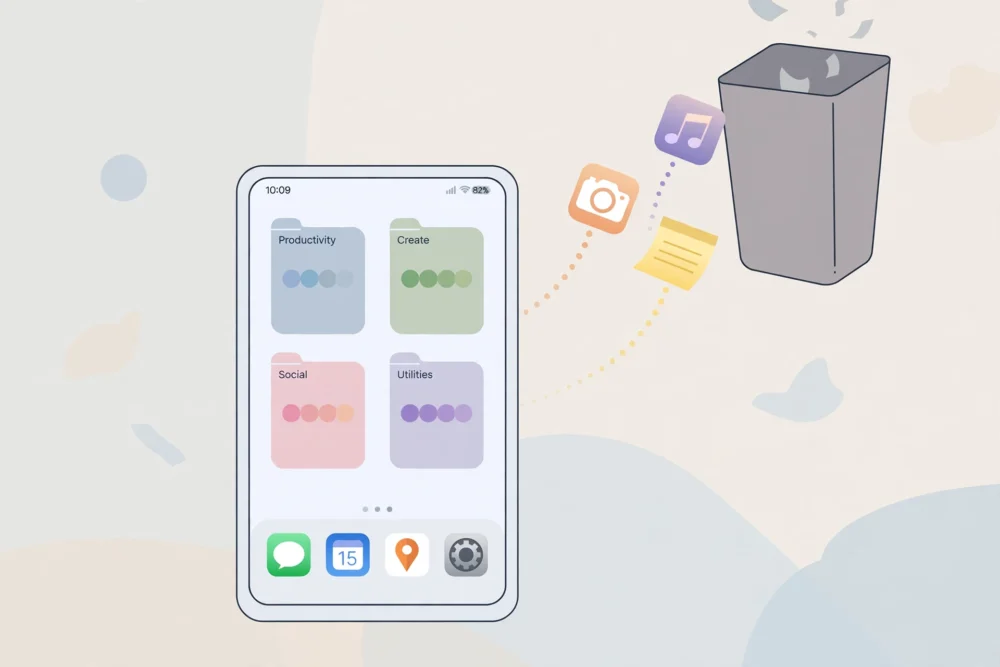
Quick answer: To declutter your phone, delete apps you have not opened in 30 days, move the apps you use daily to your home screen, put everything else in folders by purpose, clear cached data and old downloads, and turn off notifications for non-essential apps. The whole process takes about 30 minutes and usually frees storage, improves battery life, and makes your phone noticeably calmer to use.
Before You Start: Back Up First
Before deleting anything, make sure your photos and important files are backed up — to your cloud account or a computer. App deletion itself is safe: deleting an app does not delete your account with that service, and you can reinstall it later. But photos stored only inside an app or only on the phone are a different story, so back up first.
Step 1: Find the Apps You Never Use
Open your phone’s settings and look at storage or app usage. Both iPhone and Android show when each app was last opened. Any app untouched for 30 days is a candidate for deletion, with two exceptions: banking and security apps you use rarely but need, and apps tied to a device you own, like a smartwatch or earbuds app.
Delete in batches. Removing twenty unused apps feels better than agonizing over each one, and you can always reinstall anything you miss.
Step 2: Put Daily Apps on the Home Screen
Your home screen should hold only the apps you use every day: messages, email, calendar, maps, camera, and perhaps one or two personal essentials. Everything else moves off the home screen. This single change reduces the urge to open apps out of habit, because the apps are no longer staring at you.
Step 3: Organize the Rest Into Folders
Group remaining apps by purpose, not by type. Useful folder ideas:
- Money: banking, budgeting, payment apps
- Travel: maps, airlines, hotels, rides
- Health: fitness, sleep, medication reminders
- Work: email, documents, team chat
- Fun: games, streaming, social apps
Keep folders to a handful. Ten folders is barely better than no folders at all.
Step 4: Free Up Storage
After deleting apps, clear the other storage hogs:
- Photos and videos. Delete duplicates, blurry shots, and old screenshots. Set your camera to back up full-resolution copies, then remove local originals if space is tight.
- Downloads folder. Old PDFs, installers, and files you downloaded once and forgot often take surprising space.
- App caches. Streaming and social apps store large caches. Clearing cache does not delete your account or saved content — it removes temporary files the app rebuilds as needed.
- Offline content. Downloaded playlists, maps, and videos for offline use are easy to forget. Remove the ones you no longer need.
Step 5: Silence the Noise
A decluttered phone still buzzes constantly if notifications are untouched. Go through notification settings and turn off everything that is not a person contacting you or a genuinely time-sensitive alert. News, games, shopping, and social updates can wait until you open the app yourself.
Step 6: Set a Monthly Five-Minute Check
Decluttering once is not enough — phones refill themselves. Once a month, spend five minutes deleting apps you have not opened, clearing downloads, and checking storage. A tiny recurring habit prevents the next big cleanup.
Your Decluttering Checklist
- [ ] Back up photos and important files
- [ ] Delete apps unused for 30 days (except banking, security, device apps)
- [ ] Home screen holds daily apps only
- [ ] Remaining apps grouped into a few purpose folders
- [ ] Downloads folder emptied
- [ ] App caches cleared
- [ ] Non-essential notifications turned off
- [ ] Monthly five-minute check scheduled
Frequently Asked Questions
Will deleting an app delete my account?
No. Deleting an app removes it from your phone only. Your account, data, and subscriptions with that service remain, and reinstalling the app and signing in restores access.
How often should I declutter my phone?
A quick five-minute check once a month is enough for most people, with a deeper cleanup every six months. If your phone constantly warns about storage, shorten the interval.
Does deleting apps make my phone faster?
It can help, mainly by freeing storage and stopping background activity from unused apps. If your phone is still slow after decluttering, the bigger causes are usually an aging battery, a nearly full storage, or an operating system in need of an update.
What about apps I cannot delete?
Some pre-installed apps cannot be removed, only disabled. Disabling them hides them and stops most background activity, which is nearly as good. On Android, check each app’s settings for a Disable option; on iPhone, you can remove most built-in apps from the home screen.