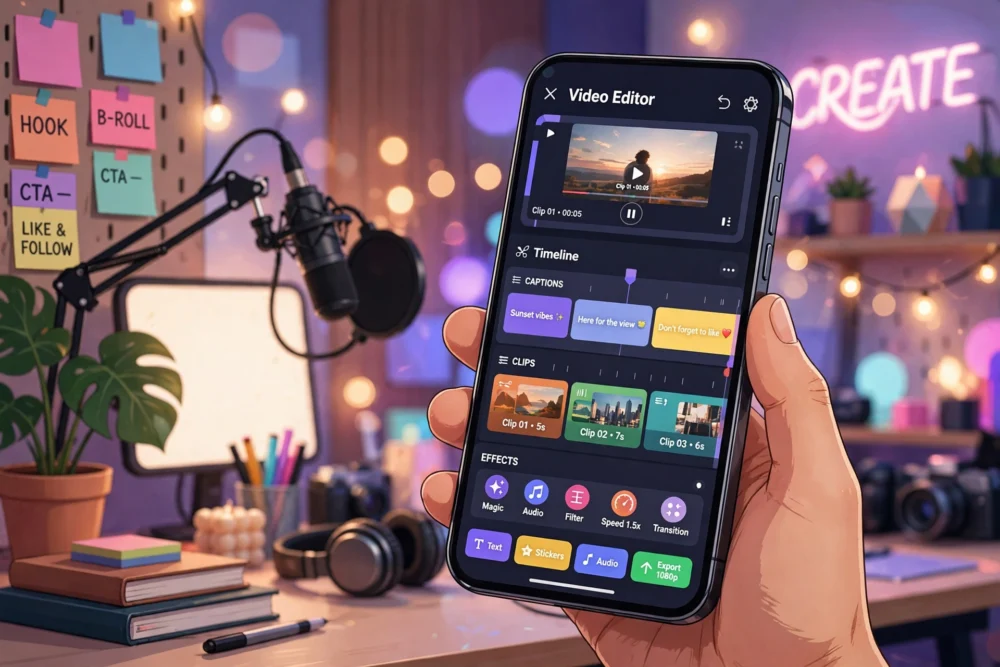
Quick answer: CapCut wins for creators who want trending templates, auto-captions, and effects built for TikTok and Reels, while InShot wins for simple, fast edits without a learning curve. Both are free to start, but CapCut’s watermark rules and InShot’s paid extras differ — so the better app depends on whether you value ready-made trends or straightforward control.
CapCut vs InShot at a Glance
| CapCut | InShot | |
|---|---|---|
| Best for | Trending short videos, effects, auto-captions | Quick, simple edits and clean exports |
| Templates | Huge library of trending templates | Smaller template selection |
| Auto-captions | Built in, very good | Available, less accurate |
| Learning curve | Medium — many features to explore | Low — easy from the first edit |
| Free exports | Watermark on some template exports | Watermark removable with a small fee or subscription |
| Platforms | iPhone, Android, desktop, web | iPhone, Android |
Where CapCut Wins
CapCut is built for the short-video world. Its template library follows current trends closely, so a creator can jump on a popular format in minutes. Auto-captions are fast and accurate, which matters because most short videos are watched with sound off. Effects, transitions, filters, and a music library are all aimed at one goal: a finished-looking vertical video, quickly.
The catch is the watermark and paywall structure. Some templates and premium effects require a paid plan, and free exports from certain templates can carry a watermark. If you post daily, check each export before publishing rather than assuming it is clean.
Where InShot Wins
InShot is the simpler tool. Trimming, merging, speed control, music, text, and filters are all easy to find, and a first-time editor can finish a decent video in minutes. It does not chase trends as aggressively, but it also does not overwhelm you with options.
Its main limitation is the watermark on free exports, removable through a one-time purchase or subscription. For creators who edit occasionally and value simplicity, that trade is often worth it.
Editing Tools Compared
Trimming and splitting. Both apps handle basic cuts well. InShot feels slightly faster for simple trims; CapCut offers more precision tools for creators who layer clips.
Text and captions. CapCut’s auto-captions are the standout feature here — accurate, styled, and quick. InShot’s captions work but need more manual correction.
Effects and transitions. CapCut has a much larger effects library, updated with trends. InShot’s effects are fewer but well-chosen and easy to apply without making a video look cluttered.
Music and audio. Both offer built-in music libraries. CapCut’s library is larger and trend-focused; InShot covers the basics well and makes it easy to add your own audio.
Export quality. Both export in high definition on their standard plans. Always check the export settings before saving — some apps default to lower resolution to save time, and a 720p export looks noticeably worse than 1080p on modern phones.
Which App Should You Pick?
- You post short videos often and follow trends: CapCut.
- You edit occasionally and want it done fast: InShot.
- You need auto-captions constantly: CapCut, by a clear margin.
- You hate cluttered interfaces: InShot.
- You edit on desktop too: CapCut, which has a full desktop version.
Many creators keep both: CapCut for trend-driven posts, InShot for quick clean edits. That combination costs nothing extra on their free plans.
Avoiding the Watermark Trap
Before you commit to an app, export one test video and watch it fully. Check the corners for watermarks, check the resolution, and check whether the app added an outro card. A watermark discovered after you have edited twenty videos is a painful surprise — test first, then commit.
Frequently Asked Questions
Is CapCut free?
CapCut is free to download and use, with a large set of free tools and templates. Some premium effects, templates, and cloud features require a paid plan, and some free template exports carry a watermark.
Does InShot have a watermark?
InShot’s free version adds a small watermark to exports. It can be removed with a one-time purchase or a subscription, and many casual users find the one-time option good value.
Which app is better for TikTok videos?
CapCut, because it is built around TikTok-style trends, templates, and effects, and its auto-captions suit sound-off viewing. InShot still works fine for TikTok, but it is not trend-driven in the same way.
Can I use these apps for YouTube Shorts and Reels too?
Yes. Both apps export vertical video that works on TikTok, Instagram Reels, and YouTube Shorts. Export at 1080p, keep videos under the platform’s length limit, and add captions for viewers watching without sound.